Using the “Bulk Forwarding Update” feature, AVOXI Administrators can edit multiple numbers’ to apply specific call forwarding rule(s) configuration to numerous numbers. The popular time-saving feature is available to all AVOXI users (no license required), making forwarding on multiple numbers or complex configurations quick and easy.
Use the below steps to get started:
- Begin by logging in to your AVOXI Account.
- Once successfully logged in, click the Numbers tab on the left-hand navigation bar.
- Then, using the checkboxes, select the phone number you wish to configure for your call forwarding.
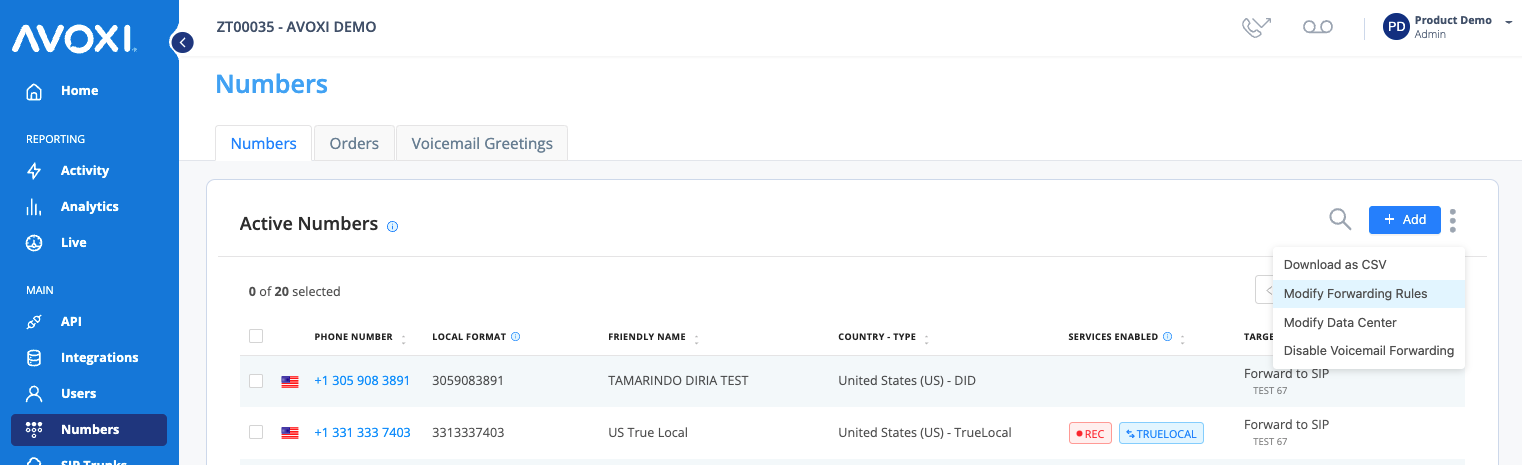
- Next, click the three-dot drop-down and choose the ‘Modify Forwarding Rules’ option.
- You can now configure your desired Call Forwarding Rules on the selected numbers.
-
Note: Rules can support multiple active times
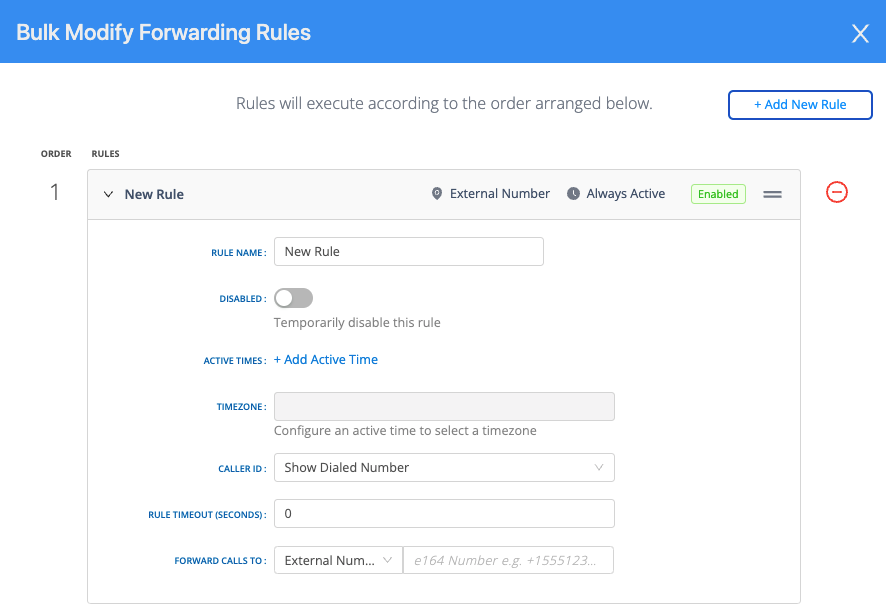
- When ready, click “SAVE” to apply forwarding rules to all selected numbers.
- A pop-up will appear at the top of your numbers page.