Un-assign a License

You can unassign a license to an agent/user as an Admin anytime. Assigning/unassign licenses to users does not impact your monthly invoice.

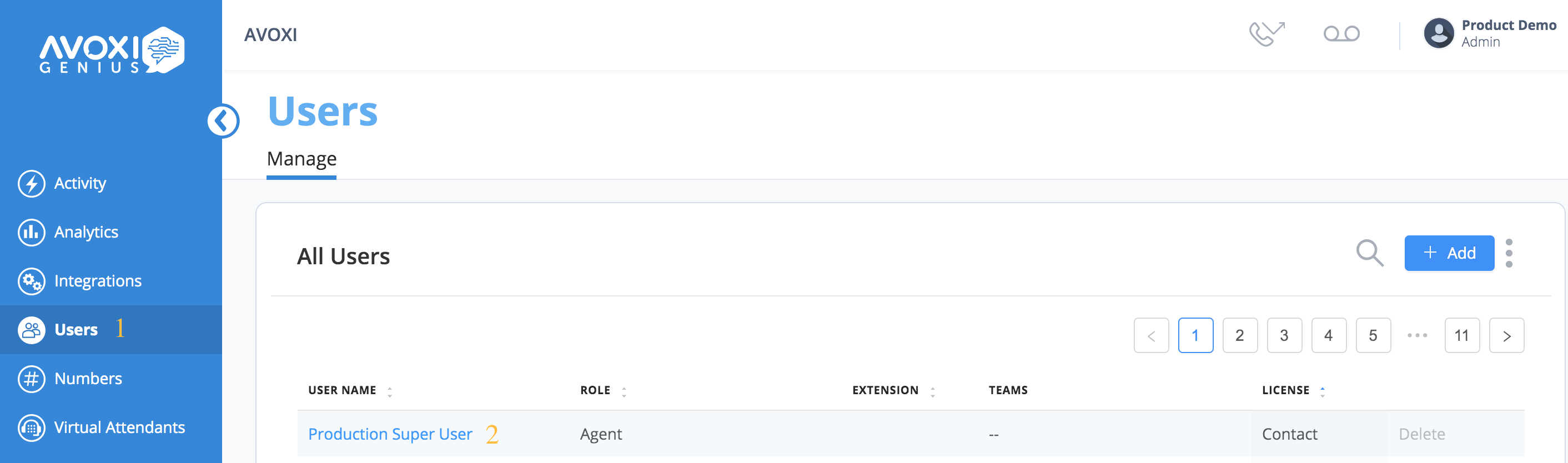
  1. To unassign a license, select the "User" icon located on the left-hand navigation bar
  2. . Select the desired user  
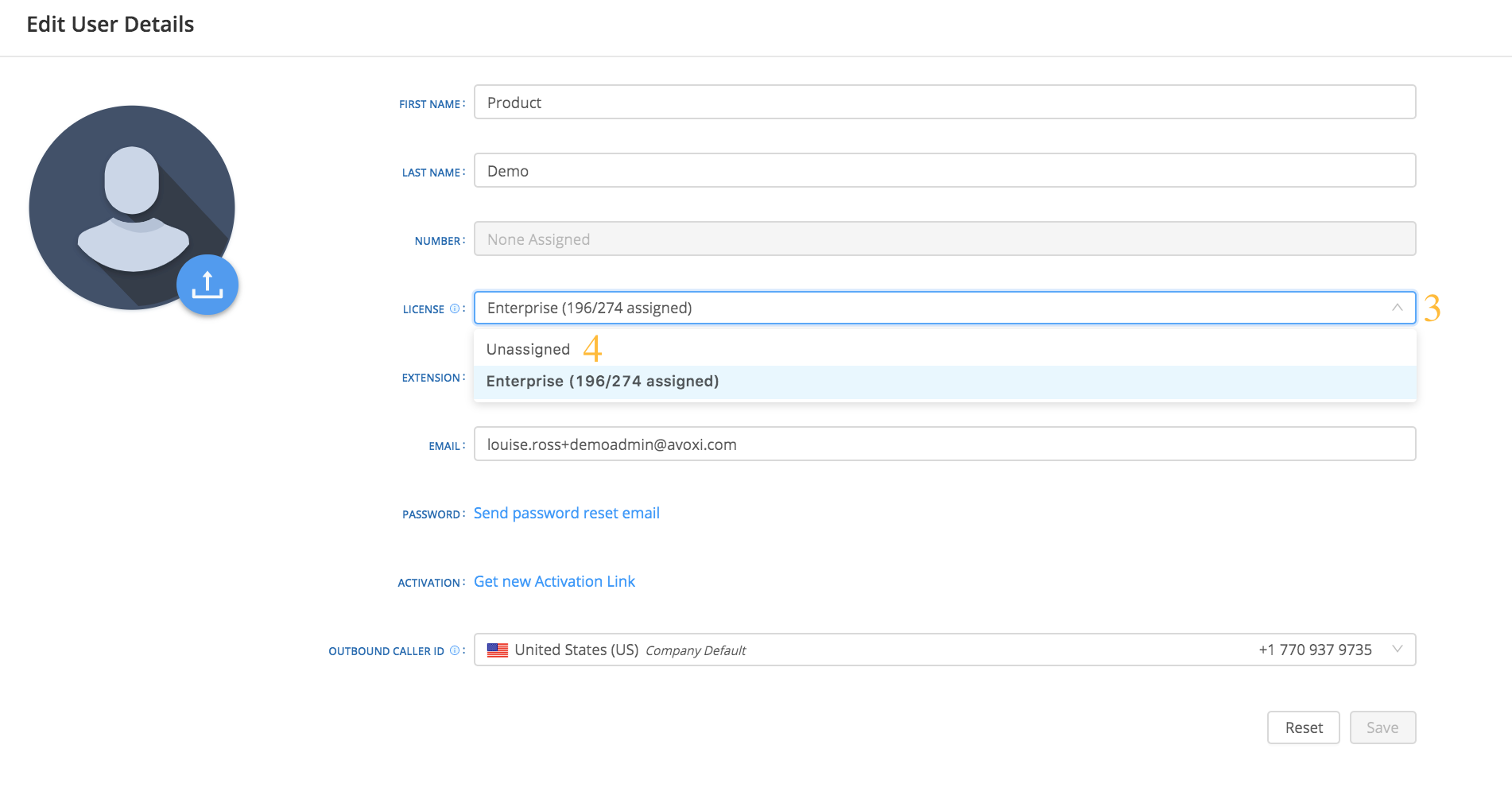
  3. Click the drop-down arrow located to the right of the License 
  4. Select "unassigned
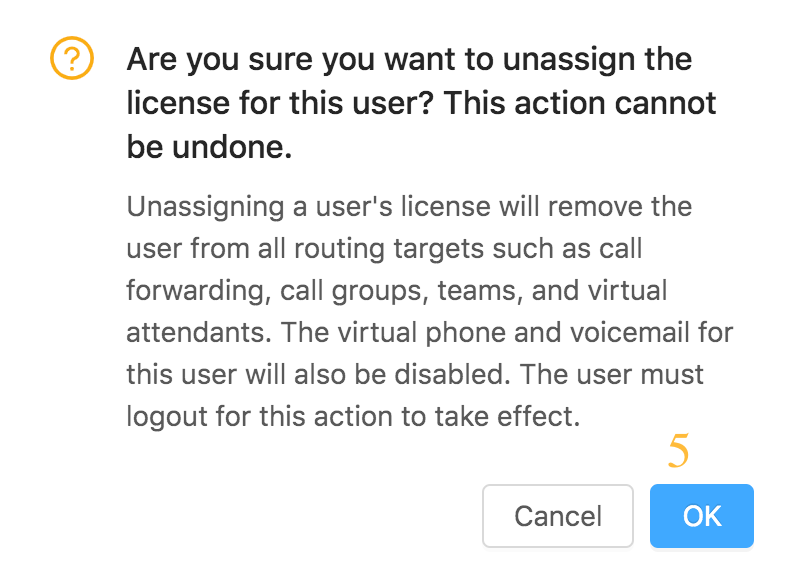
  5. A pop-up screen will ask, "Are you sure you want to unassign the license from the user?"  If you are 100% sure you wish to proceed, click the blue OK button.

Delete

It is an excellent practice to have the user log out and log back in after any license changes have been applied to a user.

Data is not deleted when unassigning of a license, but the user will be hidden from reports (e.g. Agent reports, Activity filters). They will also lose access to the Team Activity and Agent Performance, and have their Team Membership and any Phone Numbers routing to their user removed.


Was this article helpful?

Have more questions? Submit a request

Updated:

July 9th, 2026

Author:

Curtis Foster

Updated By:

Curtis Foster

KB ID:

538362

Page Views:

7948

Tags:

detach, revoke

Can't find what you're looking for?

Contact our award-winning customer care team.