"Welcome to AVOXI Genius! This guide is designed to get you up and running in minutes. Whether you are a first-time user activating your account or an experienced agent looking to refresh your profile and mobile settings, you'll find everything you need to start making and receiving calls below."
1. Activating Your Account
Immediately after your purchase, you will receive an activation email from AVOXI.
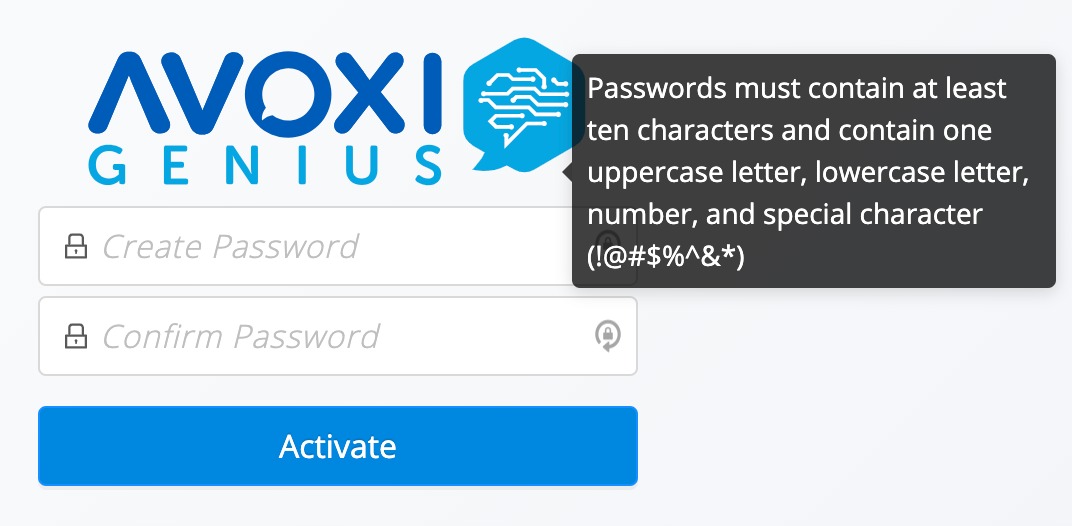
Step 1: Open the activation email and click the link to set your password.
-
Step 2: Once your password is set, your account is active.
-
On the activation page, create and confirm a new password. To keep your account secure, your password must include:
At least 10 characters
One uppercase letter (A, B, C)
One lowercase letter (a, b, c)
One number (1, 2, 3)
One special character (such as !, @, #, $)
-
-
Step 3 (Verification): An AVOXI expert may reach out shortly after to verify your account details and ensure your numbers are routing correctly.
Security Note (PCI DSS 3.2.1Compliance): If your business handles credit card information, we recommend changing your password every 90 days to stay secure. You can manage these rules in your Security Control Settings for PCI Compliance..
2. Logging In
You can access your dashboard at any time via a web browser (Google Chrome, Firefox, or Edge are recommended).
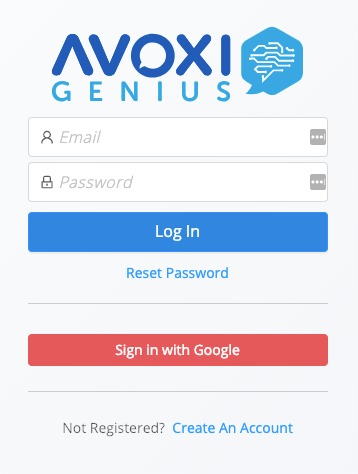
Web Login: Go to genius.avoxi.com and enter your email and password.
Google SSO: If your company uses Google, select Sign in with Google for faster access.
Mobile App Login: Use the same credentials on the AVOXI mobile app. You can also log in instantly by scanning the Mobile QR Code found under the 'My Account' tab in your web dashboard.
3. Setting Up Your Profile
Personalizing your account helps identify you to teammates and callers.
Upload a Profile Picture: From the Home section on the left navigation, select your profile to upload a photo.
Update Personal Details: Under My Account, you can edit your name, email address, and default Outbound Caller ID.
-
Set Your Status: Use the status menu to toggle between Available (ready for calls), Paused (logged in but busy), or Offline.

4. Understanding Your Features (No License Required)
Even without a paid user license, every AVOXI virtual number includes over 20 professional features:
Virtual Attendant (IVR): Create automated menus (e.g., "Press 1 for Sales") to route callers (Setting Up a Virtual Attendant (IVR) Guide ).
Call Forwarding: Redirect incoming calls to any mobile or landline worldwide (Configuring Basic Call Forwarding Guide).
Voicemail-to-Email: Receive audio recordings of your voicemails directly in your inbox (Setting up Voicemail on a Number).
Basic Analytics: View call logs and usage data from your main dashboard (Analytics - Monitoring & Reporting).
5. Essential Genius Tips
One Tab Only: To avoid connectivity issues, always keep only one AVOXI Genius tab open in your browser.
-
Permission Check: Ensure your browser has permission to access your Microphone and Notifications.